AOMEI Backupper is a Windows backup and recovery tool that handles system images, file backups, disk cloning, and file sync — all from one interface. It targets home users who want reliable protection without a steep learning curve, and small business teams that need a lower-cost alternative to enterprise tools. This AOMEI Backupper review covers how it works, what the paid tiers actually include, where it falls short, and whether it’s worth it for your situation.
AOMEI Backupper Review — The Short Version
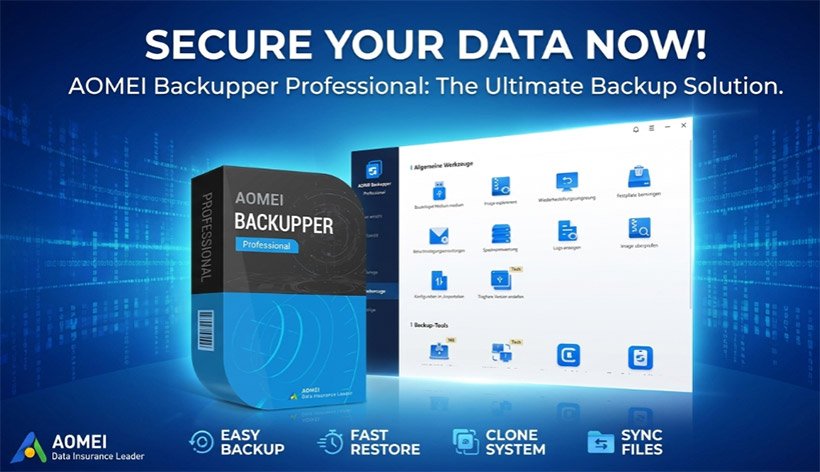
Get AOMEI Backupper Pro — Up to 80% Off Today!
- Best for: Windows home users and small business teams who want a capable backup tool without paying Acronis prices
- Pricing: Free (Standard) · $39.95/yr or $69.95 lifetime (Professional) · $49.95/yr or $79.95 lifetime (Workstation)
- Standout feature: Perpetual license option with lifetime free upgrades — increasingly rare in this category
- Biggest limitation: No macOS support; customer support quality has drawn mixed feedback at the free tier
- Overall rating: 4.3 / 5
Visit AOMEI Backupper’s Official Site!
What Is AOMEI Backupper?
AOMEI Technology has been building Windows software since 2010. AOMEI Backupper is their flagship data protection product — a standalone backup application that runs locally on Windows PCs, laptops, and servers. It does not replace cloud storage services; instead, it backs up to wherever you point it: an external drive, a NAS, a network share, or cloud platforms like Google Drive or OneDrive.
The free Standard edition covers the core use cases: system backup, disk backup, partition backup, and basic file backup and sync. Paid editions layer on scheduled automation, encryption, real-time sync, disk cloning, and priority support.
What separates AOMEI from competitors like Acronis is pricing posture. AOMEI still offers a perpetual license — you pay once and own the software, with lifetime upgrades included. Most backup tools have moved to subscriptions, so this stands out for users who want a one-time purchase.
The software runs on Windows 7 through Windows 11 and supports Windows Server editions from 2008 through 2025. There is no native macOS version, though a separate Mac product exists under a different product line.
How AOMEI Backupper Works
Get AOMEI Backupper Pro — Up to 80% Off Today!
The onboarding is quick. You download the installer from AOMEI’s site, run it, and the software is ready in a few minutes — no account creation required for the Standard version. Paid editions ask you to enter a license key after purchase.
The main interface organizes tasks into four tabs: Backup, Restore, Clone, and Utilities. Each tab surfaces the relevant options without burying them in sub-menus. Selecting a backup type — system, disk, partition, or file — opens a step-by-step wizard. You choose your source, your destination, and whether to schedule the job automatically.
Backup runs in the background. Based on independent testing, a full system backup of a typical Windows install completes in around 25–30 minutes, and incremental backups after that are considerably faster. The software has a compression rate averaging around 10%, which beats several well-known competitors in benchmark comparisons.
Restoring is the step that matters most, and here AOMEI performs well. You can restore to the original location, a new location, or dissimilar hardware — the last option matters most for users migrating to a new machine. A bootable recovery environment (WinPE or Linux-based) lets you restore even when Windows won’t start.
One friction point: creating a bootable rescue disk occasionally fails depending on system configuration. This has appeared in multiple user reports and independent reviews, and it’s worth testing your bootable media before you need it.
What Does AOMEI Backupper Offer?
The software covers four main functions: backup, restore, clone, and sync. Most home users will spend the majority of their time in the Backup tab, but the Clone feature deserves attention — it makes migrating from an HDD to an SSD straightforward, without reinstalling Windows from scratch.
Key Features
- Full, incremental, and differential backups — you control how much storage each backup cycle consumes, which matters when backing up to a limited external drive
- 256-bit AES encryption — available on paid plans; the Standard edition does not encrypt backups, which is a meaningful gap for anyone storing sensitive data
- Real-time file sync — keeps a folder on your machine mirrored to a destination as changes happen, rather than waiting for a scheduled backup window
- Universal Restore — restores a system image to hardware that differs from the original, useful for disaster recovery on a replacement machine
- Bootable media creation — builds a rescue environment on a USB drive or CD so you can recover a machine that won’t boot into Windows
Who Is AOMEI Backupper Best For?
The right user here is someone who wants local backup control without paying a monthly subscription indefinitely.
Best for:
- Home users upgrading a PC — the cloning tool handles HDD-to-SSD migrations cleanly and boots correctly without reinstalling Windows
- Small IT teams on a budget — the Workstation and Technician tiers offer multi-machine licensing at prices that undercut Acronis considerably
- Windows users who distrust cloud-only backup — AOMEI keeps backups local or on a NAS, so your data never touches a vendor’s server unless you choose it
Who should look elsewhere:
- Mac users — AOMEI Backupper is Windows-only; the separate Mac product is a different offering with a different feature set
- Users who need enterprise-grade support SLAs — the free tier gets standard-hours support, and even paid tier support has drawn mixed reviews; if a fast guaranteed response time is essential, Acronis or a managed backup service is a better fit
- Anyone who wants a verified working free trial before paying — a 30-day Pro trial exists, but bootable media issues and background service conflicts (noted by some users) are best discovered before you’re counting on a restore
Why Choose AOMEI Backupper?
The pricing structure is the clearest differentiator. The perpetual license at $69.95 — with lifetime upgrades included — is one of the better one-time-purchase deals in backup software right now. Most competitors charge $50–$70 per year, every year. Over three years, the math shifts significantly in AOMEI’s favor.
The second reason is ease of use relative to capability. The interface is plain, but it surfaces the right options at the right time. First-time users report getting a full system backup scheduled within 15 minutes of installation — without consulting documentation. That’s not trivial for software that handles system images and disk cloning.
Third: backup speed holds up under testing. Backing up 7GB of data took just over three minutes in independent benchmarks — slightly faster than Acronis True Image running the same task. Restore speed is even quicker than backup speed, which matters when you’re trying to get a system back online after a failure.
If the pricing works for your situation and the feature set covers what you need, the main variable is whether you’re comfortable with the limited support at lower tiers.
See What AOMEI Backupper Offers Today!
My Experience Using AOMEI Backupper
What I Liked
The compression efficiency stood out. Creating a system image that was noticeably smaller than the raw disk size — without any visible slowdown during normal use — is the kind of thing that makes a backup routine sustainable rather than annoying. It means you fit more backup history on the same drive.
The clone wizard also impressed. The step-by-step process for cloning to a new SSD required no manual disk formatting, no third-party tools, and produced a bootable result on the first try. For someone upgrading aging laptop hardware, this is the feature that saves the most time.
What Could Be Better
Customer support is inconsistent. User reports describe getting adequate technical help in some cases and dismissive responses in others — including at least one documented case where a user reported corrupted backups with no warning, only to be told by support that this was a known possibility, with no investigation opened. That’s a serious gap for software whose entire purpose is data protection.
The background service can also conflict with third-party security tools. Several users report performance issues — freezing, slowdowns, audio stuttering — after installing separate optimization software, with AOMEI’s service continuing to run even after manual shutdown attempts. It doesn’t affect most users, but if you run aggressive system optimization utilities, test the combination before relying on scheduled backups.
What Customers Say
The general pattern across Capterra, G2, and independent review sites is consistent: AOMEI Backupper earns praise for ease of setup and value, with the biggest complaints landing on support responsiveness and occasional compatibility issues. Most reviewers are satisfied enough to recommend it, particularly for home and small-business use. The one recurring complaint that carries real weight is the support quality when something actually goes wrong — which is exactly the moment you need support most. Overall sentiment skews positive, with AOMEI scoring a 4.3 out of 5 on Capterra across 46 verified reviews as of early 2026.
AOMEI Backupper Pricing
Pricing is where things get more interesting than the homepage immediately suggests. There are multiple license structures — annual subscriptions, perpetual licenses, and family/team plans — and the differences matter depending on how long you plan to use the software.
| Plan / Tier | Price | What’s Included | Best For |
|---|---|---|---|
| Standard | Free | System, disk, partition, file backup; basic sync; no encryption | Personal use, first-time backup users |
| Professional (Annual) | $39.95/yr | Full features, encryption, real-time sync, scheduling; 1TB cloud add-on available for $59.95/yr | Home users who want flexibility |
| Professional (Lifetime) | $69.95 one-time | All Pro features + lifetime free upgrades; no cloud storage included | Home users who want one-time cost |
| Professional (Family Lifetime) | $89.95 one-time | Lifetime license for up to 5 PCs | Households with multiple Windows machines |
| Workstation (Annual) | $49.95/yr | Adds PXE boot; designed for business use | Small business, IT admins |
| Workstation (Lifetime) | $79.95 one-time | All Workstation features + lifetime upgrades | IT teams avoiding subscriptions |
| Server | From $149.00 | Windows Server support; subscription or lifetime | Small businesses running Windows Server |
| Technician | From $499.00 | Unlimited PCs within one company | IT service providers, MSPs |
The lifetime Pro license at $69.95 represents solid value compared to the market. Acronis True Image runs $49.99–$99.99 per year with no perpetual option, and EaseUS Todo Backup’s paid plans start at a similar annual price. At AOMEI’s full price, a two-year break-even on the lifetime license is achievable — and the 90-day money-back guarantee removes most of the risk.
AOMEI offers a 90-day unconditional refund policy on paid licenses, which is notably longer than the 30-day window most competitors offer.
🏷️ Special Offer
AOMEI Backupper Professional is currently available at up to 80% off. The discount applies to the Professional plan and brings the entry price well below the standard $39.95/yr rate. At the discounted price, the lifetime license becomes an especially clear decision for anyone who was hesitant at full price — the combination of a one-time payment, lifetime upgrades, and the 90-day money-back guarantee reduces the commitment risk significantly. Check the current discount before purchasing, as promotional pricing varies by period.
Get AOMEI Backupper at the Sale Price — Up to 80% Off Today!
How AOMEI Backupper Compares
Before committing to any backup tool, it’s worth checking what the main alternatives actually offer at their price points. AOMEI sits between two well-known options: Acronis True Image, which targets users who want security features bundled in, and EaseUS Todo Backup, which competes closely on both pricing and feature set.
| Feature | AOMEI Backupper | Acronis True Image | EaseUS Todo Backup | Best For |
|---|---|---|---|---|
| Free version | ✅ Yes | ❌ No (trial only) | ✅ Yes | Budget-conscious users |
| Perpetual license | ✅ Yes | ❌ No | ✅ Yes | One-time buyers |
| Disk cloning | ✅ All paid tiers | ✅ Paid tiers | ✅ Paid tiers | HDD-to-SSD migration |
| Real-time sync | ✅ Pro+ | ✅ Yes | ✅ Paid tiers | Active file workers |
| Built-in antivirus | ❌ No | ✅ Yes (paid) | ❌ No | Security-first users |
| macOS support | ❌ No | ✅ Yes | ✅ Yes | Multi-platform households |
| 90-day money-back | ✅ Yes | ❌ 30 days | ❌ 30 days | Risk-averse buyers |
AOMEI vs Acronis True Image: Acronis bundles ransomware protection and antivirus into its paid plans, which justifies the higher annual cost for users who want a security layer alongside backup. But Acronis has no perpetual option, and user reviews cite more frustrating support experiences. AOMEI wins on price and ease of use; Acronis wins on built-in security features.
AOMEI vs EaseUS Todo Backup: These two are the closest competitors. EaseUS scores slightly higher on G2 and Capterra for overall satisfaction, and its interface has improved with recent updates. AOMEI’s edge is the 90-day refund window and slightly faster backup speeds in independent testing. For most home users, either will work — the decision often comes down to whichever UI feels more intuitive in the trial.
Pros and Cons
Pros:
- ✅ Genuinely usable free tier — no expiry, no feature bait-and-switch
- ✅ Perpetual license available with lifetime upgrade coverage
- ✅ 90-day money-back guarantee on all paid plans
- ✅ Fast backup and restore speeds, with strong compression efficiency
- ✅ Universal Restore works across dissimilar hardware
Cons:
- ❌ No macOS support — Windows-only tool
- ❌ Customer support quality is inconsistent, particularly for free-tier users
- ❌ Background service can conflict with third-party optimization tools and is difficult to force-quit
Frequently Asked Questions
Is AOMEI Backupper safe and legitimate?
AOMEI Technology has been operating since 2010 and counts Panasonic and Samsung among its enterprise clients. The software is widely reviewed by independent tech publications and carries no known malware or deceptive installation practices. It is a legitimate product from an established software company. That said, a small number of users have reported corrupted backup files without prior warning — worth testing your restore process before depending on it.
Is AOMEI Backupper worth it for a home user?
For most Windows home users, yes — particularly at the current discounted price. The free Standard edition handles basic system and file backup without a time limit, which is enough for many people. If you need encryption, real-time sync, or disk cloning, the Pro tier’s value holds up against anything in this price range. The 90-day refund policy takes most of the financial risk off the table.
Does AOMEI Backupper work with Windows 11?
Yes. AOMEI Backupper supports Windows 7 through Windows 11 across all editions. The software also supports UEFI boot and GPT disk backup, which are requirements on most modern Windows 11 machines.
Is AOMEI Backupper worth it compared to just using Windows Backup?
Windows Backup (File History) handles basic file recovery but does not create full system images by default in Windows 11, and it offers no disk cloning capability. AOMEI Backupper covers system images, incremental backups, bootable recovery media, and disk migration — tasks that Windows’ built-in tools either don’t support or handle poorly. For users who want to recover a fully working system after a drive failure, AOMEI is meaningfully more capable.
Final Verdict — Is AOMEI Backupper Worth It?
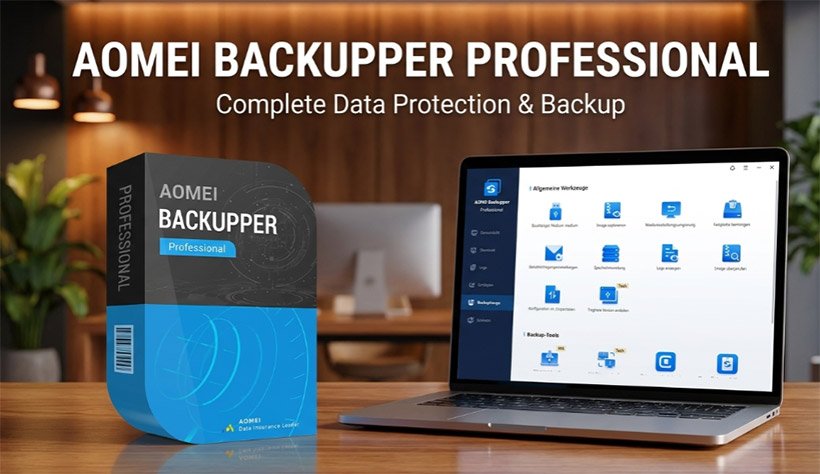
Get AOMEI Backupper Pro — Up to 80% Off Today!
AOMEI Backupper makes the most sense for Windows home users who want a capable local backup solution without committing to a recurring subscription, and for small IT teams that need multi-machine coverage at a budget-friendly price. The free Standard edition is one of the more honest free tiers in this category — it handles real backup tasks rather than acting as a feature-locked teaser.
Users who should look elsewhere are Mac users (no native support), anyone who needs guaranteed fast support response times, and anyone running aggressive third-party security or optimization tools that may conflict with the background service.
Is AOMEI Backupper Legit?
Yes. AOMEI Technology has been in business since 2010, carries an established client list, and backs paid licenses with a 90-day unconditional money-back guarantee — longer than most competitors in the space. Support responsiveness is the most credible complaint in the review ecosystem, not reliability or software integrity.
Overall Rating: 4.3 / 5
Strong value and ease of use held back slightly by inconsistent support quality and no macOS option.
Quick Recap:
- The perpetual lifetime license at $69.95 (or less with the current discount) is one of the better one-time-purchase deals in backup software right now
- The 90-day money-back guarantee makes it low-risk to try on a real machine
- Test your bootable rescue media before you need it — that’s true of any backup software, but especially relevant here
The current discount brings the Professional plan to its lowest accessible price point, which changes the value case for anyone who was waiting. If you’re on Windows and tired of paying annually for something that should be a one-time purchase, this is worth a serious look.
Visit AOMEI Backupper’s Official Site!
Reviewed by a software researcher with experience evaluating Windows backup and disk management tools across home and small-business use cases. Research for this review included analysis of the official product pages, independent benchmark data, verified user reviews on Capterra and G2, and third-party editorial reviews from PCWorld and BestBackupReviews.

